Printer specs
Yard sign file requirements
Prepare yard sign artwork with large-format resolution, bleed, safe margins, and hardware-placement checks.
Yard sign file requirements is for the moment when artwork looks good on screen but still needs print production details before a shop will accept it.
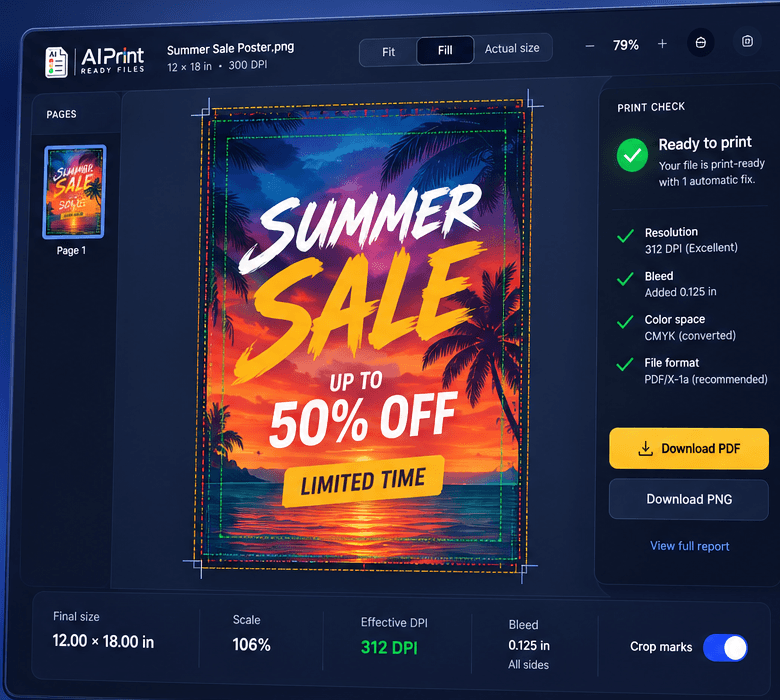
The workflow starts with a real file check, then connects that result to final size, resolution, bleed, crop marks, and export format.
That matters because most rejected files are not creatively wrong; they are missing mechanical details that print production depends on.
What the scan checks
For yard sign file requirements, the first useful step is not choosing a file format. It is checking whether the source artwork has enough information for the print size you want. The scan looks at file integrity, pixel dimensions, transparency, color setup, document structure, and whether the image is likely to produce a soft or cropped result.
This is especially important for AI-generated artwork because the image can be visually detailed without being production-ready. Many generators create beautiful texture, but the canvas size, edge behavior, text clarity, and color assumptions are tuned for screens. A preflight report turns that uncertainty into a list of concrete print risks.
Recommended workflow
Start yard sign file requirements by picking the physical product size first. A flyer, sticker, poster, canvas, yard sign, and banner can all use the same uploaded image, but each one asks different things from the file. The tool calculates the effective DPI at that selected size instead of assuming the export is sharp because it has many pixels.
Next, decide how the artwork should fit the trim box. Contain is safer when you need the full image visible. Cover is better when edge-to-edge artwork matters and some cropping is acceptable. Stretch should be used carefully because it can distort logos, faces, product images, and text. These choices are production decisions, not decorative settings.
When AI fixes help
AI upscale is useful when the file has a clear subject, enough structure, and a DPI warning that is close enough to recover. It is not a magic replacement for missing artwork. If the source is extremely tiny, heavily compressed, or full of unreadable small text, the honest result may be to resize the print smaller or rebuild the design.
For yard sign file requirements, use crisp upscale when you want to preserve edges, illustrations, product photos, and text-like detail. Use creative repair only when the image needs more interpretive reconstruction and you are comfortable reviewing the result closely before sending it to production. The point is to spend credits only when the file actually needs the operation.
Bleed, trim, and handoff
A file can be sharp and still fail if it stops exactly at the trim edge. Bleed extends artwork beyond the cut line so tiny shifts in cutting do not leave a white sliver. Crop marks show where the trim should happen. Safe-zone thinking keeps important text, logos, and faces away from the edge where finishing tolerances can cause problems.
The final yard sign file requirements handoff should match what the printer or platform asks for: the right dimensions, a usable export format, and a prepared file that does not require the production team to guess your intent. The files area keeps prepared downloads tied to retention windows so you know what is still available and when to regenerate an export.
Common mistakes to avoid
Do not judge print readiness from a browser preview, a phone screen, or a design-app zoom level. Those views scale the image for convenience. They do not prove the artwork has enough DPI at final size, enough bleed beyond trim, or a color setup that will survive print conversion.
Do not assume yard sign file requirements should always mean maximum DPI, maximum file size, or every output format at once. Better print prep is specific. It chooses the size, checks the source, applies only the needed fixes, and exports the file format that fits the production path. Specific beats oversized and vague.
How to prepare the file
- 1Upload the file and read the preflight report before choosing a fix.
- 2Set the final print dimensions rather than relying on screen pixels or default export size.
- 3Review effective DPI at the selected dimensions and add upscale only when the file needs it.
- 4Export the format your printer expects, then keep the prepared file in your files area until it expires.
| Resolution | Large-format signs may not need 300 DPI at final size, but the file still needs enough effective resolution for the viewing distance |
|---|---|
| Bleed | Use the sign vendor's template for bleed and trim because substrate and cutting tolerances vary |
| Safe zone | Keep text, arrows, phone numbers, and QR codes away from edges, stakes, grommets, and folds |
| Format | Upload the vendor-requested PDF, JPG, PNG, or vector format rather than guessing from another sign product |
| Legibility | Check contrast and type size at the expected viewing distance before ordering |
| Source note | General product guidance, not a vendor-specific rule set. Confirm size, bleed, hardware zones, and accepted file type with the sign printer before ordering. |
Questions
Can I run a free file check first?
Yes. The preflight scan checks size, DPI, bleed, transparency, and file structure before you spend credits.
Does this replace a print shop proof?
No. It prepares the file and catches common rejection issues, but your printer still controls final material, ink, and finishing approval.
What if my image is too small?
The tool shows the real effective DPI at your target size and can add crisp AI upscale when the artwork needs more pixels.
What makes yard sign file requirements different from a normal export?
A normal export usually preserves what looked right in the design app. A print-ready export is checked against the physical product size, required resolution, bleed, crop marks, and delivery format.
Why does final print size matter so much?
Pixel dimensions only become meaningful after you choose inches. A 2400 pixel image can be sharp as an 8 inch print and soft as a 24 inch poster, so the tool calculates resolution at the size you plan to order.